

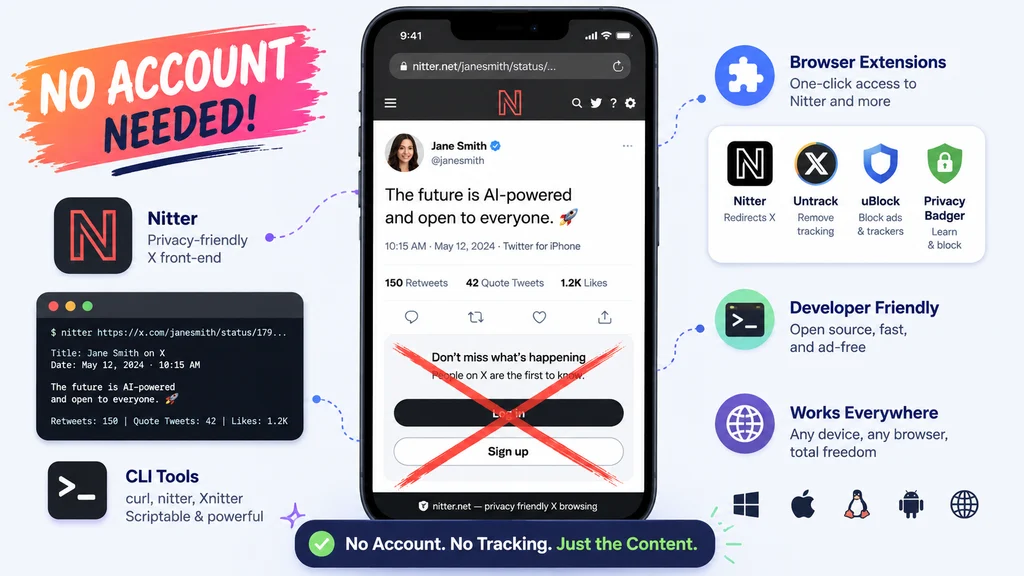
The easiest ways to read Twitter replies without an account include using browser extensions like X Tweet Viewer and Twitter X Viewer, alternative front-ends like Nitter, online tools like Twitter Web Viewer, CLI tools like x-cli, and scraping tools that bypass login walls. Top alternatives: Nitter, X Tweet Viewer, Twitter Web Viewer, x-cli command line tool, and Xtract Replies extension.
You’re scrolling through your feed, and you see it. A tweet that looks fascinating, and you really want to read the replies. Everyone’s talking about it, and you just need to see what people are saying.
But then it hits you. The dreaded login wall. “Sign in to see what’s happening.” You don’t have a Twitter account, and honestly, you don’t want to create one just to read a few replies.
This situation happens to people all the time, whether you’re a researcher trying to track a conversation, a journalist looking for public reaction to a news story, or just someone who wants to understand a viral post . The good news is that you absolutely can read Twitter replies without an account. There are multiple tools and methods that bypass this restriction and let you browse freely.
Let’s dive into 100+ ways you can access Twitter replies without logging in.
Browser Extension Responses
1. X Tweet Viewer Firefox extension
Example: Use this to view tweets, replies, and profiles directly in Firefox without creating an account.
Meaning: Renders Twitter and X links in a built-in page without external services .
2. Twitter X Viewer Chrome extension
Example: Use this to break free from login walls and view any profile or tweet anonymously.
Meaning: Bypasses all sign-in pop-ups and lets you read full conversations privately .
3. Xtract Replies Chrome extension
Example: Use this to extract replies from any post and export them as CSV or HTML.
Meaning: No account required, ideal for researchers and journalists .
4. Xcancel redirector extension
Example: Use this to automatically redirect X and Twitter URLs to Nitter.
Meaning: Transparently sends you to an alternative front-end .
5. Nitter redirector browser extension
Example: Use this to automatically view Twitter content through the Nitter interface.
Meaning: Instantly redirects URLs while preserving full paths and parameters .
6. XTweetViewer for Chrome
Example: Use this to view public profiles, replies, and conversations without tracking.
Meaning: No activity tracking, analytics, or cookies .
7. Nitter-View extension
Example: Use this to switch to a cleaner, ad-free X viewing experience.
Meaning: Replaces heavy X interface with a lightweight alternative.
8. Twitter Web Viewer Chrome extension
Example: Use this for quick, anonymous access to public tweets and media.
Meaning: Browse without leaving a footprint or signing up .
9. X Reply Viewer extension
Example: Use this to read reply chains without login interruptions.
Meaning: Seamless browsing of public content .
10. X Profile Viewer extension
Example: Use this to view any public profile and its replies anonymously.
Meaning: Profile owners cannot see your visit .
11. Thread Reader extension for X
Example: Use this to read full threads and replies without an account.
Meaning: Avoid all “Sign in to Twitter” pop-ups .
12. Private X Viewer extension
Example: Use this for privacy-focused X browsing with no data collection.
Meaning: Minimal permissions and maximum security .
Alternative Front-End Responses
1. Nitter.net
Example: Use this open-source alternative to X that lets you explore the platform without logging in.
Meaning: Lightweight, ad-free, and JavaScript-free viewing experience .
2. Nitter.it
Example: Use this instance when the main Nitter domain is unavailable.
Meaning: Alternative mirror with the same functionality .
Example: Use this as another reliable Nitter instance.
Meaning: Multiple mirrors ensure availability .
Example: Use this community-hosted Nitter instance.
Meaning: Provides redundancy and uptime.
Example: Use this instance for European users.
Meaning: Faster loading for European visitors.
Example: Use this for quick access to tweet replies.
Meaning: Clean interface without distractions .
Example: Use this well-maintained Nitter instance.
Meaning: Reliable community resource .
Example: Use this when you want to view replies in a familiar interface.
Meaning: Integration with Mastodon ecosystem.
Example: Use this French-hosted instance.
Meaning: Good for European users with lower latency.
10. Nitter.cz
Example: Use this for local language support.
Meaning: Community-maintained alternative.
11. Nitter.dark.fail
Example: Use this for reliable access with dark mode.
Meaning: Quick and privacy-focused browsing .
Example: Use this for privacy-conscious viewing.
Meaning: Minimal tracking and logging.
Online Tool Responses
Example: Use this online tool to browse profiles, tweets, and media without logging in.
Meaning: Enter a username, keyword, or hashtag to view public content .
2. Twviewer.com
Example: Use this to view Twitter profiles and tweets anonymously.
Meaning: Quick access without registration .
Example: Use this to download public Twitter videos to MP4 format.
Meaning: No login, no watermark, no usage limits .
4. Twitsave.com
Example: Use this to view and save tweets and replies.
Meaning: Anonymous browsing of public content .
Example: Use this for accessing and downloading media from public tweets.
Meaning: Useful for research and reporting .
Example: Use this to view and save tweets and reply threads.
Meaning: Works without creating an account .
7. TwitterVideoDownloader.online
Example: Use this to access tweets and their replies through video downloading.
Meaning: Quick anonymous access .
Example: Use this online service to view profiles and replies.
Meaning: Free and user-friendly interface.
Example: Use this for accessing public X content including replies.
Meaning: No login required.
10. ViralDown.com
Example: Use this to view viral tweets and their comment sections.
Meaning: Easy access to trending conversations.
11. TwDownloader.com
Example: Use this for quick access to tweet replies.
Meaning: Simple and straightforward.
12. TweetsViewer.com
Example: Use this online service for viewing conversations.
Meaning: Research-friendly interface .
Command Line Tool Responses
1. x-cli with guest mode
Example: Use this to view any public tweet directly from your terminal.
Meaning: Guest mode works without authentication for public tweets .
2. x tweet [url] command
Example: Use this to view a tweet and its metadata without logging in.
Meaning: Simple CLI command for quick access .
3. x tweet [id] – pretty
Example: Use this for human-readable output of tweets.
Meaning: Formats output for readability .
4. x tweet -json
Example: Use this for scriptable output suitable for automation.
Meaning: JSON format for data processing .
5. npm install -g @hafez/x-cli
Example: Use this to install the CLI tool for viewing tweets.
Meaning: Quick installation for terminal access .
6. x home with authentication
Example: Use this for viewing your home timeline when logged in.
Meaning: Requires login but offers full access .
7. x whoami
Example: Use this to check your current authentication status.
Meaning: Shows if you’re in guest or authenticated mode .
8. x login
Example: Use this to set up authentication for fuller access.
Meaning: Optional, for thread context and replies .
9. x logout
Example: Use this to clear stored credentials.
Meaning: Switches back to guest mode .
10. x tweet with URL
Example: Use this to view any public tweet by pasting the URL.
Meaning: Works without login for public content .
11. x setup
Example: Use this to install shell completions.
Meaning: Improves CLI usability .
12. x-cli with dev tools auth
Example: Use this for advanced setup with auth tokens.
Meaning: For users who need full reply chain access .
Scraping and API Responses
1. Twitter Comments Scraper (No Login, No Cookies)
Example: Use this to extract replies from any tweet without authentication.
Meaning: No login, no cookies, no API key required .
2. X-Scrapper Twitter Scraper with Playwright
Example: Use this to scrape X data without authentication using browser automation.
Meaning: Works with guest token and DOM extraction .
3. Scrape Twitter Comments by Tweet ID
Example: Use this to extract comments from any public tweet using just the tweet ID.
Meaning: Enter Tweet ID and get structured comment data .
4. Apify Twitter Post Comments API
Example: Use this for programmatic access to tweet comments.
Meaning: Requires Apify account but no X login .
5. Twitter Comments Scraper Cookieless
Example: Use this for scalable data extraction without authentication.
Meaning: No cookies, no authentication, no API key .
6. X-Scrapper with search terms
Example: Use this to find tweets by keywords or hashtags.
Meaning: Works without login credentials .
7. X-Scrapper with usernames
Example: Use this to scrape any public user’s tweets and replies.
Meaning: No authentication required .
8. Twitter Comments with maxResults parameter
Example: Use this to control how many replies you extract.
Meaning: Set limits for efficient collection .
9. X-Scrapper with include_replies filter
Example: Use this to capture reply tweets specifically.
Meaning: Filter for specific content types .
10. Apify CLI for Twitter Comments
Example: Use this to run scrapers locally.
Meaning: Local processing with no cookies .
11. X-Scrapper with engagement metrics
Example: Use this to get likes, retweets, and reply counts.
Meaning: Full data extraction for research .
12. Twitter Comments with sentiment analysis
Example: Use this for analyzing audience feedback.
Meaning: Pre-structured data for analysis .
Privacy-Focused Responses
1. Nitter with JavaScript disabled
Example: Use this to browse X without any tracking scripts.
Meaning: Clean, fast, and private viewing .
2. Nitter with ad blocking
Example: Use this to remove all promoted content from view.
Meaning: Distraction-free browsing .
3. Nitter with statistics hidden
Example: Use this to focus on content without engagement numbers.
Meaning: Cleaner interface for reading .
4. Nitter with media disabled
Example: Use this for faster loading on slow connections.
Meaning: Text-only experience for replies .
5. Nitter with Piped video replacement
Example: Use this to view videos without Google services.
Meaning: Privacy-first media viewing .
6. Nitter with dark theme
Example: Use this for comfortable night browsing.
Meaning: Eye-friendly interface .
7. Nitter with Reddit alternative link replacement
Example: Use this to avoid tracking from other platforms.
Meaning: Replaces links with privacy-friendly alternatives .
8. Nitter with no autoplay
Example: Use this to control your browsing experience.
Meaning: Manual media playback only .
9. Nitter with search filters
Example: Use this for advanced content discovery.
Meaning: Targeted searching without login .
10. Nitter with custom instance selection
Example: Use this to choose your preferred Nitter server.
Meaning: Faster access and redundancy .
11. Nitter with tweet display options
Example: Use this to customize how tweets appear.
Meaning: Tailored reading experience .
12. Nitter with link substitution
Example: Use this to replace links with alternative services.
Meaning: Complete control over browsing .
FAQ
Can I read Twitter replies without an account?
Yes, absolutely. There are numerous tools and methods available including Nitter, browser extensions, online tools, and command line tools that let you view public tweets and replies without logging in .
Why can’t I just visit Twitter.com to see replies?
Twitter (now X) now forces users to log in or sign up just to view basic content like tweet replies. This started after the platform became more restrictive to unauthenticated users .
What is Nitter?
Nitter is an open-source alternative front-end to X that allows you to explore the platform without logging in. It’s free of ads, JavaScript, and tracking scripts .
Do these tools work with private accounts?
No. These tools only work with public profiles and public tweets. Private or protected accounts cannot be viewed through any method .
Is it legal to use these methods?
Yes, all these methods access publicly available content. However, you should respect privacy, properly cite sources, and avoid presenting information out of context .
Conclusion
You don’t need to create a Twitter account just to read replies anymore. Whether you prefer browser extensions for convenience, Nitter for privacy, command line tools for scripting, or online tools for quick access, there’s a solution that works for you.
The methods covered in this guide let you bypass login walls, view full conversations, and even download data for research purposes. Each approach has its strengths, from the privacy-first Nitter experience to the data extraction power of scraping tools .
Save this guide for the next time you hit that frustrating login wall. Share it with friends who don’t have Twitter accounts. And remember, public tweets are just that, public. You have every right to read them without surrendering your personal information .








2 thoughts on “ 100+ Ways to Read Twitter Replies Without an Account Complete Guide For 2026”