

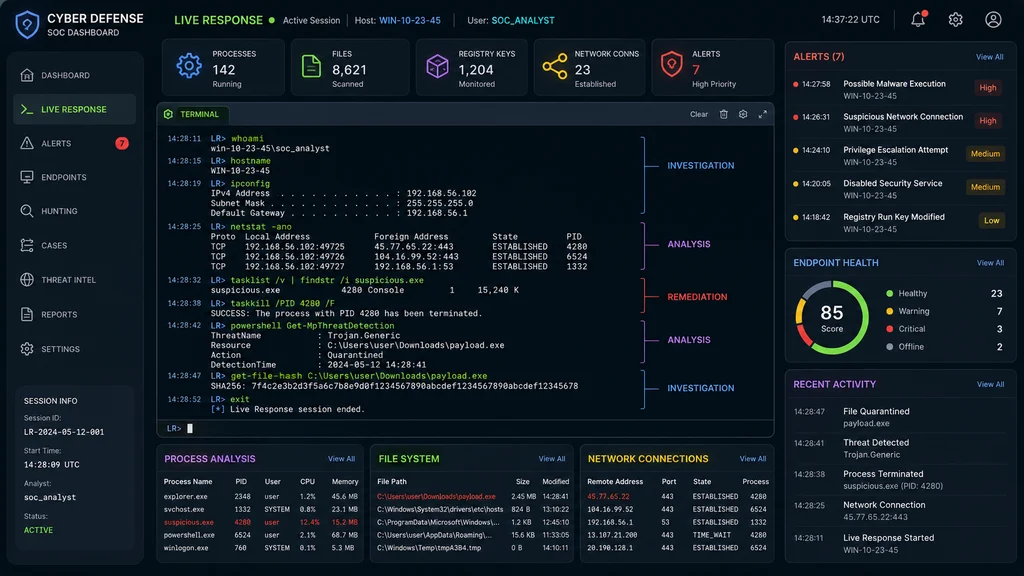
The best live response commands enable security analysts to investigate, remediate, and collect forensic data from compromised devices in real time. From basic file navigation to advanced threat hunting, these commands put powerful capabilities at your fingertips. Top alternatives: interactive endpoint commands, security incident response CLI, forensic data collection tools, threat remediation commands, and real-time investigation commands.You’ve just detected a potential breach. Your security operations center is buzzing. You need to analyze what’s happening on that endpoint right now, not in an hour when the report runs .
That’s where live response commands come in. They’re the difference between staring at alerts and actually stopping the attack in real time . Whether you’re running a basic dir to list suspicious files or executing the analyze command to get a verdict on malware, these commands let you investigate, collect evidence, and remediate threats without waiting for a full forensic image .
The truth is, knowing the right live response commands can make or break your incident response. That’s why we’ve put together this comprehensive guide covering over 200 commands and explanations for every cybersecurity scenario .
Basic Navigation Commands
1. cd [directory path]
Example: Use this to change your current working directory on the remote endpoint.
Meaning: Navigates the file system just like you would on your local machine .
2. dir [directory path]
Example: Use this to list files and subdirectories in the current folder.
Meaning: Shows you what’s in a directory, including file names and attributes .
3. pwd
Example: Use this to confirm which directory you’re currently in.
Meaning: Prints the current working directory path .
4. cd ..
Example: Use this to move up one directory level.
Meaning: Navigates to the parent directory from your current location.
5. dir -full_path
Example: Use this when you need the complete path for each file.
Meaning: Displays absolute file paths instead of relative ones .
6. dir -output json
Example: Use this for automated parsing of directory contents.
Meaning: Returns directory listing in JSON format for scripting .
7. drives
Example: Use this to see all drives available on a Windows endpoint.
Meaning: Lists all drives on the remote system .
8. cd C:\Users\username\Desktop
Example: Use this to navigate directly to a specific user’s desktop.
Meaning: Takes you to a particular folder using the full path .
9. cd /tmp
Example: Use this when investigating Linux endpoints.
Meaning: Navigates to the temporary directory on Unix-like systems .
10. pwd
Example: Use this after navigating to verify your location.
Meaning: Confirms the absolute path of your current directory.
11. help dir
Example: Use this when you need detailed information about a specific command.
Meaning: Shows additional details and options for the dir command .
12. cls
Example: Use this to clear the console for better readability.
Meaning: Clears the terminal screen .
File Investigation Commands
1. get [file_path]
Example: Use this to download a suspicious file from the remote endpoint for analysis.
Meaning: Downloads a file from the remote machine to your local system .
2. fileinfo [file_path]
Example: Use this to check file properties without downloading the entire file.
Meaning: Displays detailed information about a specific file .
3. findfile [filename]
Example: Use this to locate a known malicious file across the system.
Meaning: Searches for a file by name across all directories .
4. getfile [file_path] -auto
Example: Use this to automatically handle prerequisites when downloading a file.
Meaning: Runs prerequisite commands automatically before file download .
5. getfile [path] &
Example: Use this to download large files without blocking other actions.
Meaning: Performs a file download in the background, allowing continued investigation .
6. fg [command_id]
Example: Use this when you need to bring a background download to the foreground.
Meaning: Returns a background command to the foreground .
7. delete [path]
Example: Use this to permanently remove a confirmed malicious file.
Meaning: Deletes the specified file permanently, not to the Recycle Bin .
8. dir -full_path
Example: Use this to see the full path of files in a directory.
Meaning: Helps you locate exactly where files are stored .
9. findfile test.txt
Example: Use this to quickly locate a known file on the endpoint.
Meaning: Returns the full path of the located file .
10. getfile c:\Users\user\Desktop\malware.exe
Example: Use this to collect a malware sample for further analysis.
Meaning: Downloads the file to your local environment .
11. fileinfo C:\Windows\notepad.exe
Example: Use this to verify file authenticity and integrity.
Meaning: Shows file properties including creation time and size .
12. delete c:\temp\suspicious.dll
Example: Use this to remove a confirmed threat from the endpoint.
Meaning: Permanently removes the malicious file .
Process Management Commands
1. ps
Example: Use this to see all running processes on the remote endpoint.
Meaning: Lists all processes with their process IDs and paths .
2. kill [process_pid]
Example: Use this to terminate a malicious process immediately.
Meaning: Stops a process by its process ID .
3. processes
Example: Use this to get a comprehensive list of running processes.
Meaning: Shows all processes running on the device .
4. processes -pid 123
Example: Use this to get detailed information about a specific process.
Meaning: Shows information for the process with the specified PID .
5. processes -name notepad.exe
Example: Use this to locate specific processes by name.
Meaning: Finds all processes with the given name .
6. analyze process 1234
Example: Use this to get a verdict on a suspicious process.
Meaning: Analyzes a process with various detection engines .
7. execfg [processpath]
Example: Use this to run a command and see its output immediately.
Meaning: Executes a process and returns stdout/stderr to the screen .
8. exec -o outputfile processpath
Example: Use this when you need to capture command output for later review.
Meaning: Redirects process output to a remote file for download .
9. exec -w processpath
Example: Use this when you need to wait for a process to complete.
Meaning: Waits for the process to exit before returning control .
10. exec -o c:\output.txt -w c:\scripts\some_script.cmd
Example: Use this to run scripts and capture their output.
Meaning: Executes a script, waits for completion, and writes output to a file .
11. kill [pid]
Example: Use this to stop a process that you’ve confirmed is malicious.
Meaning: Terminates the process immediately .
12. analyze process 1234
Example: Use this to get a rapid malware verdict on a running process.
Meaning: Analyzes the process with various engines to reach a verdict .
Registry Investigation Commands
1. registry HKEY_CURRENT_USER\Console
Example: Use this to investigate user-specific registry settings.
Meaning: Shows information about values in a registry key .
2. registry HKEY_CURRENT_USER\Console\ScreenBufferSize
Example: Use this to view specific registry values.
Meaning: Displays information about a specific registry value .
3. reg [action] [key] [options]
Example: Use this to view or modify Windows registry settings.
Meaning: Powerful command for registry operations on Windows endpoints .
4. registry HKEY_LOCAL_MACHINE\SOFTWARE\Microsoft\Windows\CurrentVersion\Run
Example: Use this to check for persistence mechanisms.
Meaning: Lists startup programs that could indicate malware .
5. registry HKEY_CURRENT_USER\Software\Microsoft\Windows\CurrentVersion\Run
Example: Use this to check user-specific startup entries.
Meaning: Shows user-level persistence mechanisms .
6. registry HKEY_LOCAL_MACHINE\SYSTEM\CurrentControlSet\Services
Example: Use this to investigate services that may be malicious.
Meaning: Lists Windows services for analysis .
7. reg query HKLM\SOFTWARE\Microsoft\Windows\CurrentVersion\Run
Example: Use this with the reg command for detailed output.
Meaning: Queries registry keys for persistence entries .
8. registry HKEY_CURRENT_USER\Console\ScreenBufferSize
Example: Use this to examine specific registry values in detail.
Meaning: Shows value data and type for the specified registry value .
9. remediate registry HKEY_CURRENT_USER\Console\ScreenBufferSize
Example: Use this to remove a malicious registry entry.
Meaning: Deletes the specified registry key or value .
10. undo registry HKEY_CURRENT_USER\Console\ScreenBufferSize
Example: Use this to restore a registry entry you previously removed.
Meaning: Reverses the remediation action .
11. registry HKEY_LOCAL_MACHINE\SOFTWARE\Microsoft\Windows\CurrentVersion\RunOnce
Example: Use this to check for one-time execution malware.
Meaning: Looks for malware that runs only once at startup .
12. reg add HKLM\SOFTWARE\Microsoft\Windows\CurrentVersion\Run /v “Security” /t REG_SZ /d “C:\fake\security.exe”
Example: Use this to test persistence mechanisms (in testing only).
Meaning: Adds a registry entry for research purposes.
System Investigation Commands
1. ps
Example: Use this to see all running processes on the remote endpoint.
Meaning: Lists all processes with their process IDs and paths .
2. drivers
Example: Use this to check for suspicious drivers installed on the endpoint.
Meaning: Shows all drivers installed on the device .
3. services
Example: Use this to investigate services that may be hiding malware.
Meaning: Lists all services running on the endpoint .
4. scheduledtasks
Example: Use this to check for malicious scheduled tasks.
Meaning: Shows all scheduled tasks on the endpoint .
5. persistence
Example: Use this to find all known persistence mechanisms.
Meaning: Shows common persistence methods on the endpoint .
6. scheduledtasks Microsoft\Windows\Subscription\LicenseAcquisition
Example: Use this to investigate specific scheduled tasks.
Meaning: Shows details about a specific scheduled task .
7. connections
Example: Use this to investigate network connections from the endpoint.
Meaning: Shows all active network connections .
8. connections -output json
Example: Use this for automated analysis of network connections.
Meaning: Returns connections in JSON format for parsing .
9. memdump [filepath]
Example: Use this to capture memory for advanced forensic analysis.
Meaning: Takes a kernel memory dump and stores it to the specified file .
10. drivers
Example: Use this to investigate potentially vulnerable drivers.
Meaning: Lists all installed drivers with their details .
11. services
Example: Use this to find suspicious services that start automatically.
Meaning: Shows all services with their startup type and status .
12. connections json
Example: Use this without the parameter name for JSON output.
Meaning: Alternative syntax for JSON-format connection listings .
Threat Hunting Commands
1. analyze file malware.txt
Example: Use this to get a quick verdict on a suspicious file.
Meaning: Analyzes a file with various detection engines .
2. analyze process 1234
Example: Use this to get a verdict on a running suspicious process.
Meaning: Analyzes a process with different engines to reach a verdict .
3. findfile suspicious.dll
Example: Use this to locate known malicious files on the endpoint.
Meaning: Searches for a file by name across the entire system .
4. remediate file c:\malware.exe
Example: Use this to delete a confirmed malicious file.
Meaning: Remediates the file by deleting it .
5. remediate process 7960
Example: Use this to stop a confirmed malicious process.
Meaning: Stops the process and deletes the image file .
6. remediate scheduledtask Microsoft\Windows\Subscription\LicenseAcquisition
Example: Use this to remove malicious scheduled tasks.
Meaning: Deletes the specified scheduled task .
7. undo file c:\malware.exe
Example: Use this if a file was removed by mistake.
Meaning: Restores a file that was previously remediated .
8. undo registry HKEY_CURRENT_USER\Console\ScreenBufferSize
Example: Use this to restore registry entries removed by mistake.
Meaning: Reverses a registry remediation .
9. undo scheduledtask Microsoft\Windows\Subscription\LicenseAcquisition
Example: Use this to restore a scheduled task that was removed.
Meaning: Reverses a scheduled task remediation .
10. remediate list
Example: Use this to see all remediated entities.
Meaning: Shows a list of all actions taken with remediate .
11. analyze file c:\Users\user\Desktop\malware.txt
Example: Use this for a thorough analysis of a suspicious file.
Meaning: Analyzes the file and provides a verdict .
12. remediate service MaliciousService
Example: Use this to stop and delete a malicious service.
Meaning: Stops, deletes the image file, and removes the service .
Script Execution Commands
1. run script.ps1
Example: Use this to execute a PowerShell script from the library.
Meaning: Runs a PowerShell script from the library on the endpoint .
2. run get-process-by-name.ps1 -parameters “-processName Registry”
Example: Use this to run scripts with arguments.
Meaning: Executes a script with specified parameters .
3. exec c:\windows\system32\notepad.exe
Example: Use this to run a legitimate tool for investigation.
Meaning: Executes a process in the background .
4. exec -o c:\output.txt -w c:\scripts\some_script.cmd
Example: Use this to capture script output for later analysis.
Meaning: Runs a script and saves output to a file .
5. execfg c:\windows\system32\ipconfig /all
Example: Use this to see network configuration immediately.
Meaning: Runs ipconfig and shows output on screen .
6. run script.ps1 -parameters “-parameter1 value1”
Example: Use this for scripts that require input.
Meaning: Passes parameters to the script .
7. exec -w c:\scripts\malware_analysis.ps1
Example: Use this for long-running scripts where you need to wait.
Meaning: Waits for script completion before returning .
8. exec -o c:\output.txt c:\scripts\forensic_collection.cmd
Example: Use this to collect forensic data for later review.
Meaning: Runs a collection script and saves output .
9. run script.ps1
Example: Use this for automated investigation scripts.
Meaning: Runs a script from the live response library .
10. exec c:\tools\collector.exe
Example: Use this to run third-party collection tools.
Meaning: Executes external tools in the background .
11. run script.ps1 -parameters “-path C:\Users\user\Desktop\malware.txt”
Example: Use this for scripts that operate on specific files.
Meaning: Passes file paths as parameters to the script .
12. execfg c:\windows\system32\whoami /all
Example: Use this to check user context quickly.
Meaning: Shows user and group memberships on the endpoint .
File Transfer Commands
1. getfile c:\Users\user\Desktop\work.txt
Example: Use this to download a file from the remote endpoint.
Meaning: Downloads the specified file to your local system .
2. putfile get-process-by-name.ps1
Example: Use this to upload a script from the library.
Meaning: Uploads a file from the library to the endpoint .
3. putfile script.ps1 -overwrite
Example: Use this to overwrite an existing file on the endpoint.
Meaning: Uploads the file and overwrites if it already exists .
4. putfile script.ps1 -keep
Example: Use this when you need the file to persist after reboot.
Meaning: Keeps the file on the machine after restart .
5. library
Example: Use this to see what files are available to upload.
Meaning: Lists files in the live response library .
6. library delete script.ps1
Example: Use this to manage your library contents.
Meaning: Deletes a file from the library .
7. getfile c:\Users\user\Desktop\work.txt -auto
Example: Use this to automatically handle prerequisites.
Meaning: Runs prerequisite commands before downloading .
8. get c:\Users\user\Desktop\malware.txt
Example: Use this to download malware samples for analysis.
Meaning: Downloads a file from the remote host .
9. download C:\windows\some_file.exe &
Example: Use this for large files that take time to download.
Meaning: Downloads a file in the background .
10. fg 1234
Example: Use this to bring a background download to the foreground.
Meaning: Returns a background download to the foreground .
11. putfile get-process-by-name.ps1 -overwrite
Example: Use this to update scripts on endpoints.
Meaning: Uploads a file and replaces existing versions .
12. library
Example: Use this to inventory available scripts.
Meaning: Shows all files in the library for easy reference .
Session Management Commands
1. detach
Example: Use this to leave a session but keep it active for others.
Meaning: Detaches from the session but leaves it live .
2. detach -q
Example: Use this to terminate a session completely.
Meaning: Terminates the session and detaches all users .
3. archive
Example: Use this to save all session data for later review.
Meaning: Creates a gzip tarball of all session data .
4. help
Example: Use this to see all available commands.
Meaning: Shows a list of all live response commands .
5. help dir
Example: Use this to get detailed info about a specific command.
Meaning: Shows description and options for the dir command .
6. trace
Example: Use this to debug issues with the terminal.
Meaning: Sets the terminal’s logging mode to debug .
7. clear
Example: Use this to improve screen readability.
Meaning: Clears the console screen .
8. cls
Example: Use this as an alternative to clear.
Meaning: Clears the console screen .
9. detach -q
Example: Use this to force close a stuck session.
Meaning: Terminates the session and all attachments .
10. archive
Example: Use this for audit trails and documentation.
Meaning: Downloads all session data including commands and files .
11. connect
Example: Use this to start a live response session.
Meaning: Initiates a session to the device .
12. help processes
Example: Use this to understand process investigation options.
Meaning: Shows details about the processes command .
Advanced Analysis Commands
1. analyze file c:\malware.exe
Example: Use this to get a verdict on a suspicious file.
Meaning: Analyzes the file and returns a verdict .
2. analyze process 1234
Example: Use this to get a verdict on a running process.
Meaning: Analyzes the process to see if it’s malicious .
3. memdump c:\memory_dump.dmp
Example: Use this for deep forensic analysis of memory.
Meaning: Creates a kernel memory dump for offline analysis .
4. connections json
Example: Use this for automated network analysis.
Meaning: Lists active connections in JSON format .
5. persistence
Example: Use this to find advanced persistence mechanisms.
Meaning: Shows all known persistence methods on the endpoint .
6. drivers
Example: Use this to investigate driver-level threats.
Meaning: Lists all drivers installed on the device .
7. scheduledtasks
Example: Use this to find scheduled tasks malware.
Meaning: Shows all scheduled tasks on the endpoint .
8. analyze file malware.txt
Example: Use this for rapid malware analysis.
Meaning: Analyzes the file with various detection engines .
9. processes -name powershell.exe
Example: Use this to find PowerShell processes for analysis.
Meaning: Shows all PowerShell processes running .
10. connections
Example: Use this to investigate command and control traffic.
Meaning: Shows all active network connections .
11. services
Example: Use this to find service-based malware.
Meaning: Lists all services on the device .
12. registry HKEY_LOCAL_MACHINE\SOFTWARE\Microsoft\Windows\CurrentVersion\Run
Example: Use this to find persistence in the registry.
Meaning: Shows startup entries that may indicate malware .
Troubleshooting Commands
1. help
Example: Use this when you forget a command syntax.
Meaning: Shows all available commands .
2. help getfile
Example: Use this to understand file download options.
Meaning: Shows detailed help for the getfile command .
3. trace
Example: Use this to diagnose connection issues.
Meaning: Sets logging to debug mode .
4. argparse
Example: Use this to test argument parsing issues.
Meaning: Tests how Live Response parses CLI arguments .
5. detach
Example: Use this when a session becomes unresponsive.
Meaning: Detaches from the session while keeping it active .
6. detach -q
Example: Use this to close a stuck session completely.
Meaning: Terminates the session .
7. clear
Example: Use this to clear cluttered output.
Meaning: Clears the console screen .
8. help dir
Example: Use this to see directory command options.
Meaning: Shows detailed info about the dir command .
9. cls
Example: Use this to clear the screen quickly.
Meaning: Clears the console screen .
10. fg [command_id]
Example: Use this to resume a background download.
Meaning: Brings a background command to the foreground .
11. detach
Example: Use this to free up a session for others.
Meaning: Detaches but leaves the session active .
12. help exec
Example: Use this to understand process execution options.
Meaning: Shows detailed help for the exec command .
FAQ
What are live response commands?
Live response commands are interactive commands that let security analysts connect to and investigate devices in real time, running commands as if they were physically at the machine .
How do I start a live response session?
You start a session by selecting a device and clicking the “Go Live” button, which creates and attaches to a session with that endpoint .
What’s the difference between basic and advanced commands?
Basic commands allow investigation and data collection, while advanced commands enable remediation actions like deleting files, stopping processes, and modifying the registry .
Can I run scripts during a live response session?
Yes, you can run PowerShell scripts from the library using the run command, passing parameters as needed .
Are files downloaded during a session stored anywhere?
Yes, files are cached on the server and can be retrieved using the archive command or accessed through the library .
Conclusion
Live response commands are your frontline defense against evolving threats. They give you the power to investigate, contain, and remediate incidents in real time, turning your security analysts into digital first responders.
The commands in this guide represent the essential toolkit for modern incident response. From basic navigation to advanced threat hunting, each command serves a specific purpose in your investigation workflow. The key is knowing which command to use and when.
Mastering live response commands isn’t just about technical knowledge, it’s about building confidence in your ability to respond when it matters most. Start with the basics, practice your workflow, and gradually incorporate advanced commands as you become comfortable.
Save this guide, share it with your team, and use it as your go-to reference during investigations. The next time you need to investigate an endpoint, you’ll be ready.






6 thoughts on “200+ Best Live Response Commands for Security Analysts Complete Guide For 2026”